Thinking about building a web or mobile application? Opening a restaurant or remodeling your home? Have continual ideas for new businesses?
Suck at drawing things?
Learn Photoshop. Period.
If I had to trace how I learned photoshop back to one experience, it would have to be 2004 when I was trying to get a promotion for a job. I had almost no photoshop skills and I might even cringe at the manipulated image that I had sent to my now-former employer. I was thanking the hiring manager for considering me for the job, and I had attempted to replace the Red Bull logo with the words “Thank you” on a picture of a Red Bull can. This may seem strange but it makes sense when you consider that I was going for a job as a regional manager for a company that distributes Red Bull. I thought it was a pretty cool way to stand out, but the guy who was hiring didn’t even mention it. If it were today I’d probably at least have him looking twice at the manipulated image.
Although I didn’t get the job, I did learn something that week that I didn’t previously know. It was the foundation for one of the most useful tools I use just about every day, Photoshop. It’s a surprisingly medium-difficult skill to learn, but an easy one to justify spending the time to learn. It’s just a program that needs to be played around with. Once learned, the Photoshopper can do just about anything they want to create mockups, wireframes, business cards, flyers, and thank-yous. I’ve photoshopped so many things over the last 15 years including a pug head on a goose, my head inserted on other people’s bodies, and friends’ heads on animal bodies.
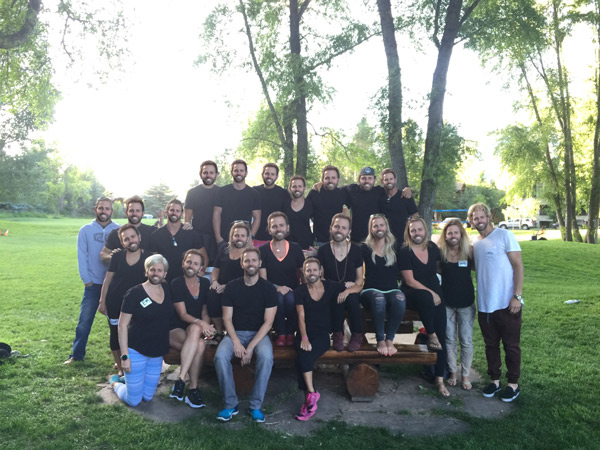
Below is a thank you image I created for my friends at lululemon. Creepy, right? I sent this thank-you 4 years ago and they still talk about it to this day.
We have abundant resources these days for photo manipulation. A good friend of mine, who is admittedly more creative than I am, uses his iPhone in ways that blow my mind. His instagram account is seriously legit. We’ve talked about how he uses his iPhone to edit everything - touching up photos, removing blemishes, or moving content around. Yes, just about every photographer with an amazing account photoshops or manipulates their photos. The surprising thing was that my friend had never used Photoshop, but instead pieced together several images manipulating apps on his phone to achieve different effects. I tried to teach him how to use photoshop a few times but it never fully stuck with him. Maybe it was the teacher. It all comes down to what is most comfortable for you. Learning Photoshop or Illustrator can be replaced with mobile apps and PowerPoint. But you should learn Photoshop.
I’ve started several businesses since the last time I ever received a W-2 (2006). For each business, I’ve used Photoshop to help me convey my idea, build a web application, create business cards, or sketch things out. Sometimes I start drawing my ideas with pen and pencil, or perhaps even on my massive whiteboard (8 footer!) in my office. (Note: I’ve never considered myself a super creative person as far as art goes). In almost every situation where I start with pencil and paper, I end up creating a pixel-perfect, lifelike mockup in Photoshop. It’s really impressive what can be accomplished with knowing just the basics and a few clever shortcuts. I’d consider myself a level below pro. While I’m fast and can zip through a mockup, some of the guys out there go far beyond my skill set to create huge, multi-layer psd files. If you’ve never seen a time-lapse of a supermodel being photoshopped for the cover of a magazine, then I’d highly recommend it. Check it out below.
Get inspired. When creating a mockup in Photoshop, it’s really good to start with some examples of inspiring work. Elements don’t have to be copied, but styles and effects can be mimicked.
Have an idea of the end product. It’s fine to play around with photoshop but having an end-goal will create a direct path to the desired outcome.
Keep the psd organized. I usually work on the organization after all of the ideas have been added in, layer by layer. Keeping layers organized will help you hide or swap out designs as needed. In my case, I can mock up an entire website in less than a day. Being able to swap out menus, for example, allows me to show a client a few different ideas without having to create several files.
Here's an example of a recent UI design in 4x speed.
Go for it with the ideas. The best part about Photoshop is the ability to copy, iterate, and undo. Going from ideas to code is time-consuming and might not produce the result you’re going for.
Learn the shortcuts. One of the most useful shortcuts I use is command+control+shift+4. Try it if you’re on a Mac. You can screenshot part of your screen, create a new photoshop file (control+n), then paste (command+v) into photoshop. Photoshop will remember the screenshot size and create a new psd file with the exact dimensions of the screenshot. Once you paste the file into Photoshop you can cut (command+x) elements, then paste in place (command+shift+v) so the elements you’ve cut and pasted become their own layers in the psd.
If you’re interested in pursuing a new web application, we can help photoshop your ideas so they become pixel-perfect mockups. Or, if you’re now a seasoned photoshop user and you’d like to share your ideas with us, we’d love to see them. Reach out to us and let’s get the conversation started.